Add detailed exhibit content: name, description, media, facts, and accessibility info. Attach to a type and a collection. Exhibits are central to your app’s storytelling.
- Exhibits are feature items displayed in-app. They could be animals in a zoo or objects in a museum. The term ‘exhibit’ can be changed in the glossary section of Settings.
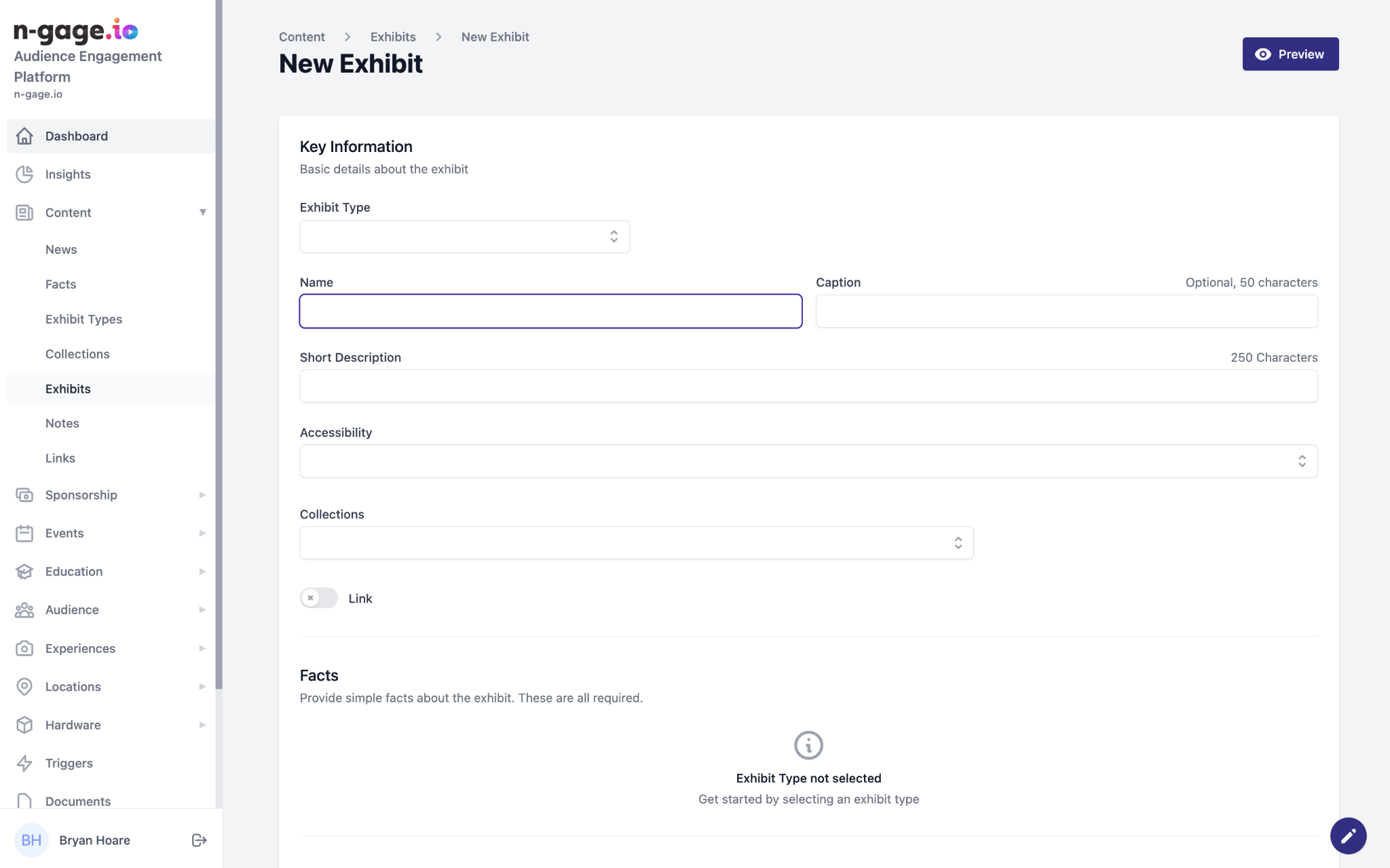
- To create an exhibit, select an existing exhibit type, this will also attach any attributed facts of that exhibit type. Add an external URL link for more information.
- Add exhibition information to be displayed in the audience app.
Select accessibility criteria, relevant facts and media files, all of which will be displayed in-app. Attach an exhibit to a collection to display in-app.
- Operators have the ability to save partially complete exhibits midway through the creation process. Information is stored as a draft which can be revisited at any time. Until published, this content will have no visibility in the audience mobile application.
- To save a draft, the exhibit type and exhibit zone must be completed.
- Use the preview button to view how an exhibit will look in the mobile app.
- Exhibits visibility in the app can be toggled on/off from appearing in the ‘explore view’. For example, this allows certain content to only be displayed in trails.
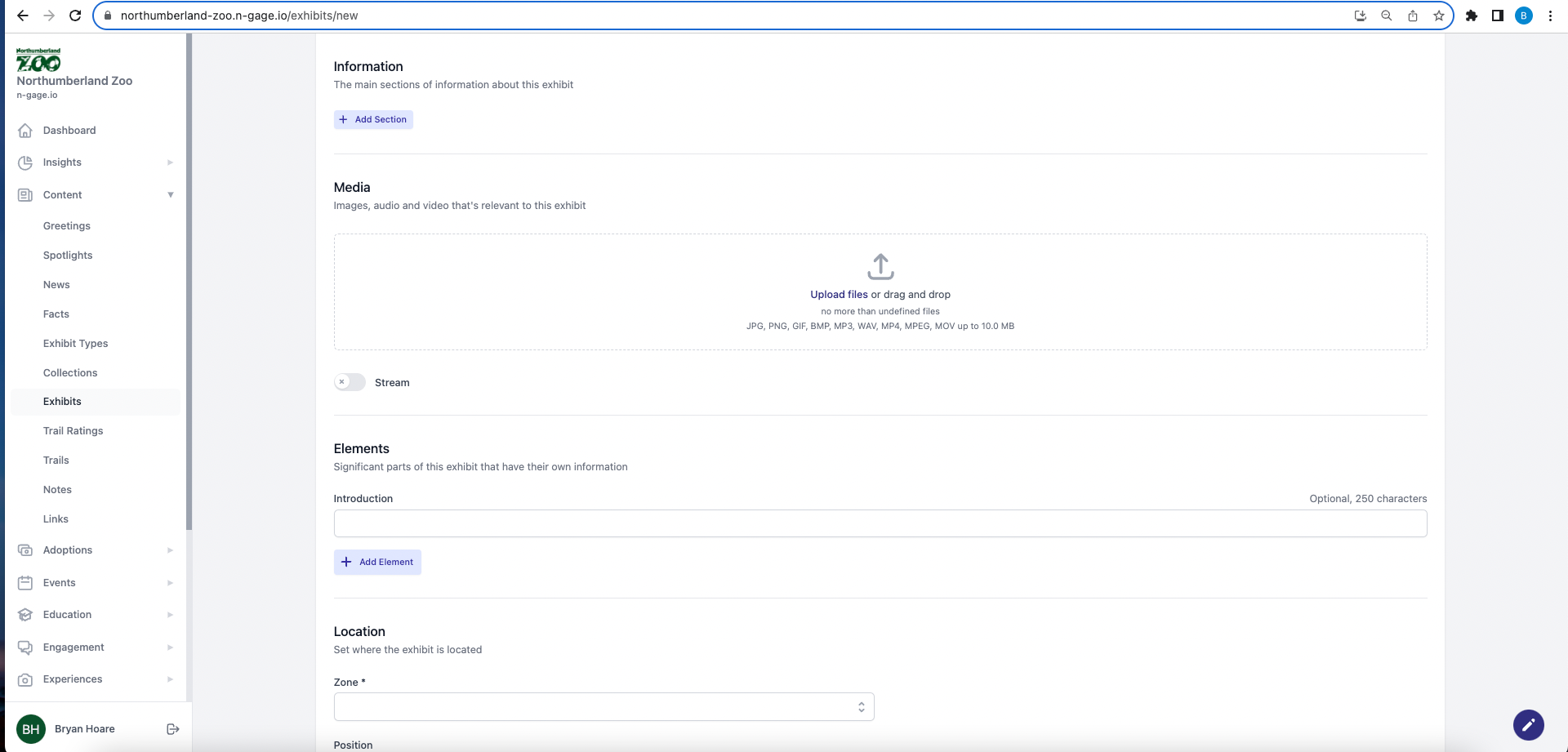
- Add exhibit elements as a subset of an exhibit. Exhibit elements can be used to profile individual characters in a zoo setting for example. Take a Racoon exhibit and add elements for each racoon in the enclosure to help personalise content. The title (introduction) of the element can also be customised.
- Select the sustainable toggle to display
a leaf icon denoting that the exhibit is environmentally and socially sustainable (ESG). - Select ‘Stream’ to associate a live stream/camera feed with an exhibit to display in-app. This will require an integration with a third party.
- Choose the zone and plot the location of the exhibit element on the map using the position icon on the top left of the map. Select the status to determine if the element is displayed on the map in the app overview screen.