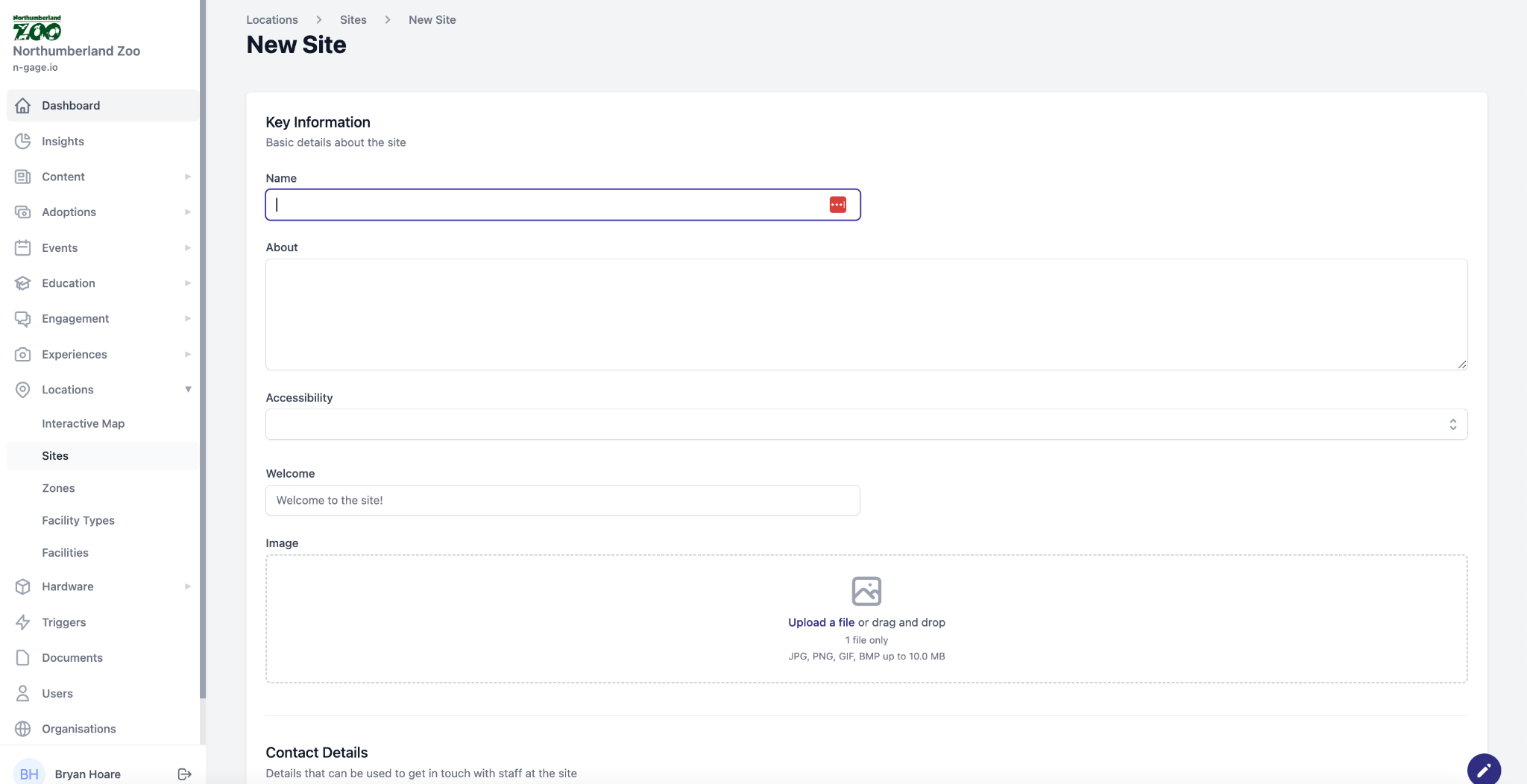
Add site details including welcome text, accessibility info, and opening hours. Upload a banner image for in-app display and draw your site boundary on the map. For multi-level sites, add additional levels. The site boundary determines on-site vs off-site detection.
- When creating a new site, input basic information to be viewed in-app. Add about us text, a welcome message and accessibility info. Any uploaded image is viewed as the welcome banner in the app overview screen.
- Locate the site on the map using the zoom functions and drag functionality. Select a map view to help with identifying the site. Use the boundary tool on the top left of the map window to draw out the site boundary. When mapping an internal level on site, use the multi-level creator to add new levels.
- Add opening hours with any exceptions and visitor information to appear in-app. Opening hours can also include always open or always closed.
- Add your welcome text with a suitable image that will form the app greeting on the overview screen. This can also be switched into a ‘spotlight’ using that feature.